What Is the Deep Dark Web and Why Access It
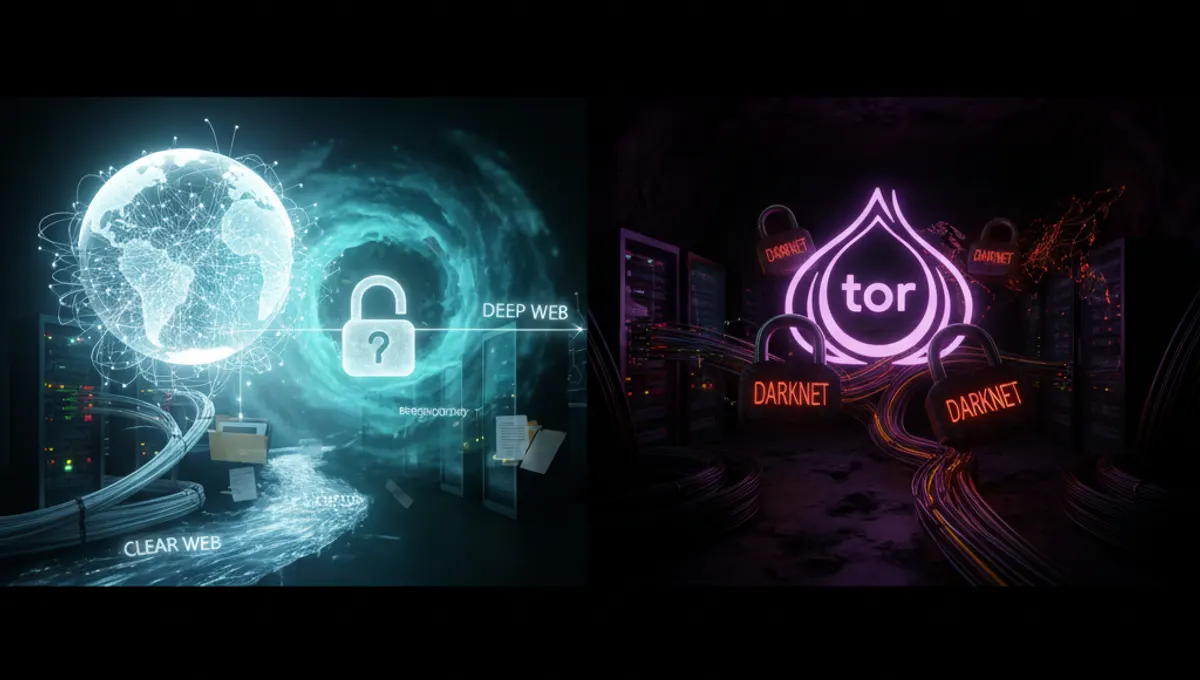
The deep dark web refers to encrypted networks and content not indexed by standard search engines. Unlike the surface web, it requires specific software to reach. People access it for legitimate reasons: journalists protecting sources, activists in restricted regions, researchers studying privacy, and individuals seeking anonymity for sensitive communications. The Tor network, operated by the Tor Project, is the most common entry point. Understanding what you're accessing and why matters before taking technical steps. The deep dark web is not inherently illegal, but it does require deliberate navigation and heightened security awareness.
Tor Browser: The Primary Tool for Deep Dark Web Access
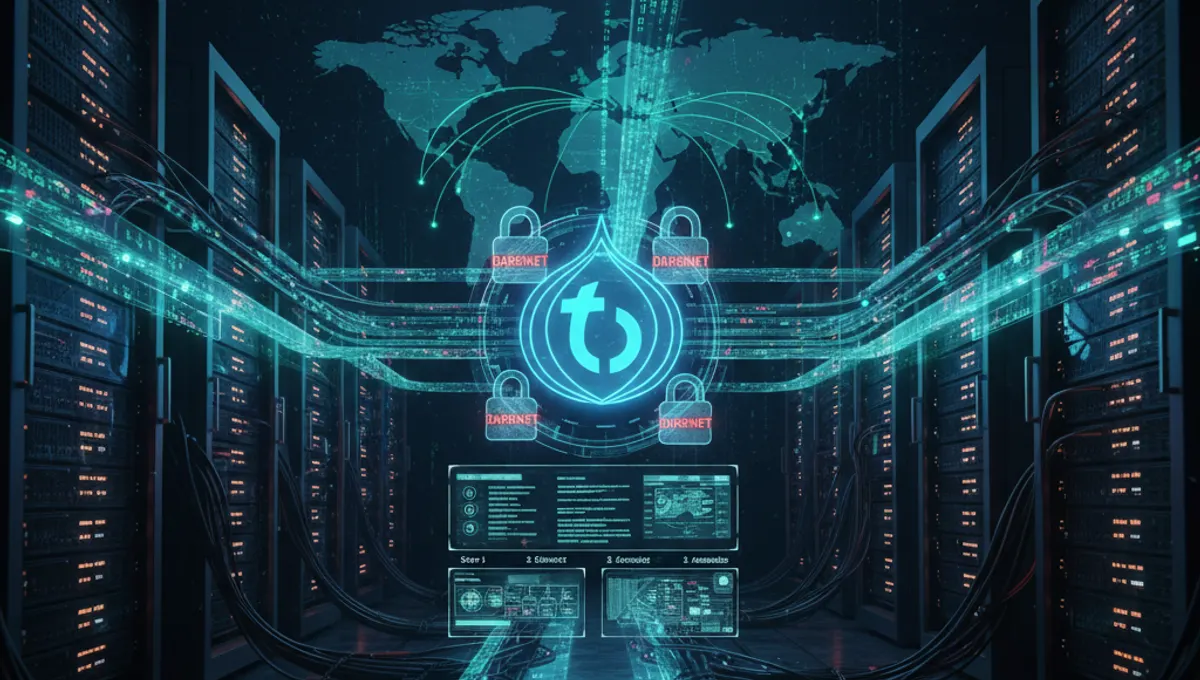
Tor Browser is the official application from the Tor Project for accessing onion sites and the deep dark web. It routes your traffic through multiple encrypted relays, masking your IP address and location. Download Tor Browser only from the official Tor Project website to avoid compromised versions. The browser is built on Firefox and works on Windows, macOS, and Linux. Installation is straightforward: extract the file and launch the application. On first run, Tor Browser connects to the Tor network automatically. Once connected, you can access .onion addresses and use deep dark web search engines. The browser includes built-in protections against fingerprinting and tracking, making it safer than using standard browsers with Tor configured manually.
Step-by-Step Setup for Deep Dark Web Access
- Download Tor Browser from the official Tor Project website.
- Verify the file signature to confirm authenticity.
- Extract the archive to a folder on your computer.
- Launch the Tor Browser executable.
- Click "Connect" and wait for the network to initialize (30-60 seconds typically).
- Once connected, the browser window opens with a confirmation page.
- Test your connection using the built-in security check.
- Enter a .onion address in the address bar to access deep dark web sites.
- Do not maximize your browser window to prevent fingerprinting.
- Keep Tor Browser updated to receive security patches. For added security, consider running Tor Browser inside a virtual machine or on Tails, a privacy-focused operating system that routes all traffic through Tor by default.
Security and Anonymity: VPN Plus Tor and Critical Practices
Using a VPN before connecting to Tor adds a layer of protection by hiding your Tor connection from your internet service provider. However, choose a VPN provider carefully—use only services with transparent privacy policies and no-logging practices. Connect to the VPN first, then launch Tor Browser. Avoid these common mistakes: do not resize your browser window to full screen, do not enable plugins or extensions, do not open multiple tabs simultaneously on unfamiliar sites, and do not download files unless necessary. If you must download, use Tor Browser's built-in download handler and scan files with antivirus software afterward. Never maximize your browser or change display settings, as this creates a unique fingerprint that can identify you. Disable JavaScript in Tor Browser settings for additional protection. Never use your real name, email, or personal information on any deep dark web platform.
Finding and Navigating Deep Dark Web Sites
Deep dark web search engines index .onion sites and help you locate resources. These search engines operate similarly to surface web search but focus exclusively on onion content. Enter search terms and review results carefully—verify site authenticity before interacting. Many deep dark web sites are mirrors of legitimate services, while others are experimental or niche projects. Look for site descriptions, user reviews on trusted forums, and verification badges where available. Bookmark verified addresses using Tor Browser's bookmark feature rather than searching repeatedly. Be cautious of sites requesting personal information or payment upfront. Legitimate deep dark web sites typically explain their purpose clearly. Use the "Verified Market" section on this site to access current, checked onion links with confirmed uptime. Never click links from untrusted sources or follow redirects without confirming the destination address.
Common Risks and How to Avoid Them
The deep dark web hosts both legitimate and malicious content. Risks include malware-infected files, phishing attempts, law enforcement operations, and scams. Mitigate these by: keeping your operating system and Tor Browser fully updated, using antivirus software, avoiding downloads unless absolutely necessary, not trusting unsolicited messages or offers, and never disabling Tor Browser's security features. Assume any site could be monitored or compromised. Do not assume anonymity is absolute—law enforcement agencies operate on the deep dark web. Avoid sites that request unusual permissions or seem designed to harvest information. If a deal seems too good to be true, it is. Never enable plugins like Flash or Java, as these bypass Tor and expose your real IP. Use a dedicated device or virtual machine if accessing sensitive services. Keep backups of important data encrypted and stored offline.
Alternative Tools and Operating Systems
Tor Browser is the standard, but other tools exist for specific use cases. Tails is a live operating system that routes all traffic through Tor and leaves no trace on your computer. Whonix is a virtual machine designed for anonymity, with a gateway that routes traffic through Tor. Both are more complex than Tor Browser but offer stronger isolation. For most users, Tor Browser alone is sufficient. If you require maximum security—such as handling sensitive documents or communications—consider Tails or Whonix. These tools are free and open-source. Bitwarden is a password manager that works well with Tor for managing credentials securely. Combine these tools based on your threat model and use case. Do not mix tools carelessly; each has specific design assumptions about how you'll use it.
Frequently asked questions
Is accessing the deep dark web illegal?
No. Accessing the deep dark web via Tor is legal in most countries. Using it for illegal activities is not. The Tor network itself is legitimate and used by journalists, activists, and privacy-conscious individuals worldwide. Your jurisdiction may have specific laws, so check local regulations.
How long does it take to connect to the deep dark web?
Initial connection typically takes 30-60 seconds. Tor Browser must establish circuits through multiple relays. Subsequent connections may be faster if circuits are cached. Connection speed depends on your internet speed and Tor network load. Patience is required on first launch.
Can I be traced while using Tor?
Tor provides strong anonymity, but it is not absolute. Law enforcement can operate exit nodes and monitor traffic. Mistakes—like revealing personal information—compromise anonymity. Using Tor correctly significantly reduces traceability, but assume no tool is perfect.
What should I do if Tor Browser won't connect?
Check your internet connection first. Restart Tor Browser. If your ISP blocks Tor, use a VPN before launching Tor Browser. Check the Tor Project website for bridge addresses if standard connection fails. Bridges are alternative entry points to the Tor network.
Can I use Tor Browser on my phone?
Yes. Onion Browser and Orbot are Tor applications for iOS and Android respectively. They provide similar functionality to desktop Tor Browser. Download only from official app stores to avoid compromised versions.